Showing posts with label Apple Watch. Show all posts
Apple Watch How to Use Digital Touch

Apple Watch How to Use Digital Touch

admin 00:57 Add Comment

With Digital Touch, you can send sketches, taps, or even your heartbeat to your friend's Apple Watch.
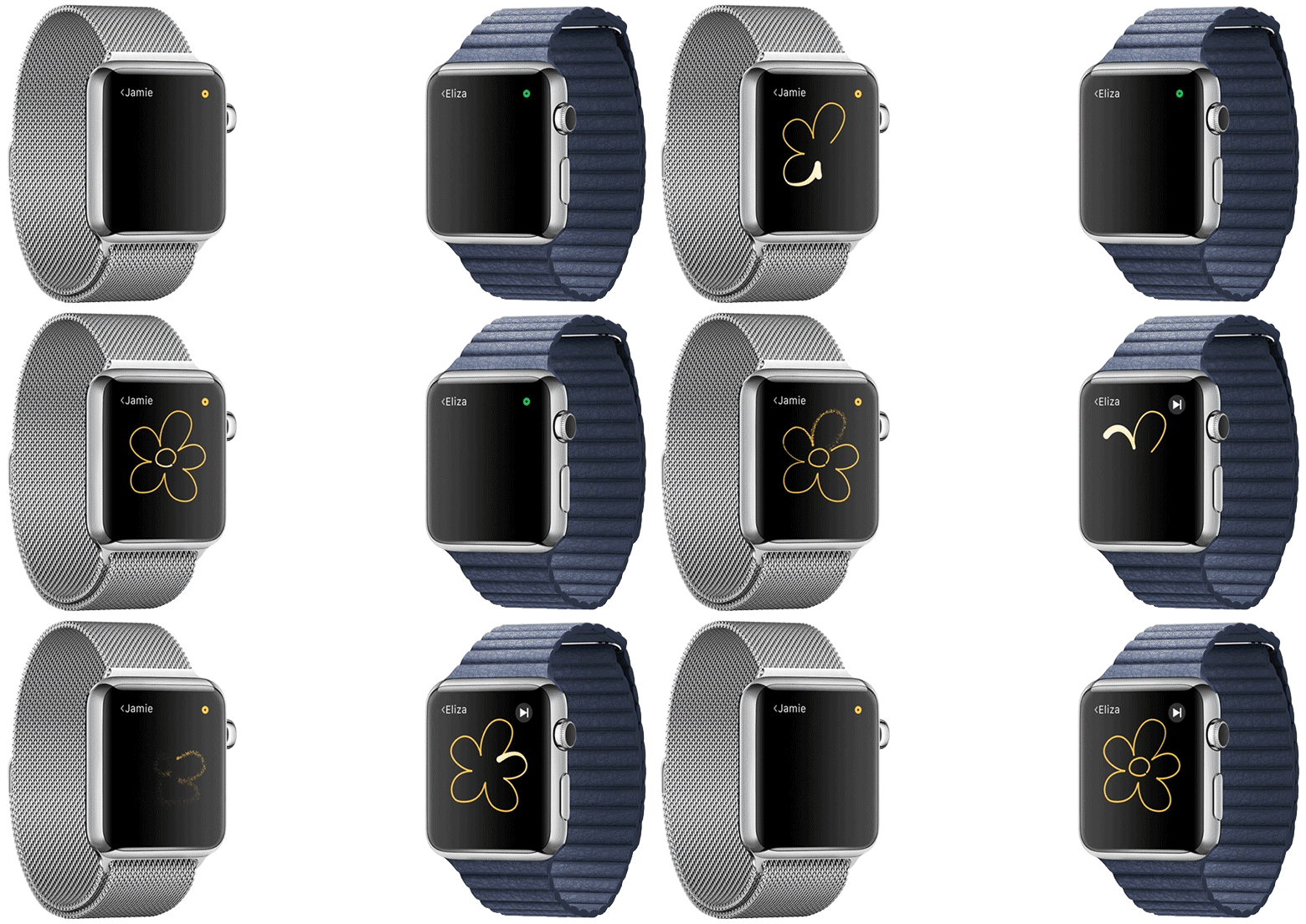


Jamie sent Eliza a flower sketchGet Started


You can send a Digital Touch from your Apple Watch to your friend's Apple Watch. You and your friend can follow these steps to get started:


  1. Make sure that your Apple Watch is paired to your iPhone. Digital Touch uses the phone number associated with your iPhone and the Apple ID you signed in with when you set up your Apple Watch.

  2. Add your contacts to Friends on your Apple Watch. When you pair your Apple Watch and iPhone, up to 12 of your favorite contacts will automatically appear in Friends on your Apple Watch. You can also manage your friends from the Apple Watch app on your iPhone. 

  3. Send your friend a sketch, tap, or heartbeat. If you can send your friend a Digital Touch, you'll see Touch after you select your friend.


       Jamie


Send a Digital Touch


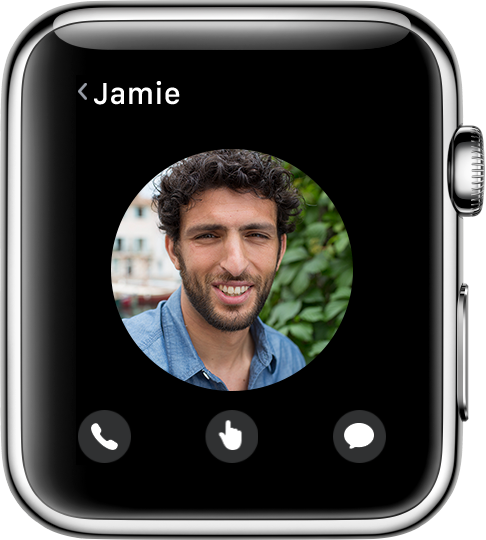
Press the side button to see your friends, select someone using the Digital Crown, then tap their initials or picture. You'll only see Touch if your friend has an Apple Watch. 


If your friend recently paired their Apple Watch, you might need to wait an hour or more before you can send them a Digital Touch.




Apple Watch Sticky Digital Crown

admin 00:54 Add Comment
Has anyone else's digital crown developed a stickiness/stiffness?

Mine was fine for the first 4 days and turned really freely, however today it has developed a bit of resistance when turning it.

For example, if the Digital Crown isn't turning smoothly or your Apple Watch isn't responding to a button press, follow these steps.

Check for debris and wipe down your Apple Watch

If the Digital Crown gets stuck or won’t move, it might be because of dirt or debris. If you find substances like dust or lotion around the Digital Crown, follow these steps to clean, and repeat as needed:
  1. Turn off your Apple Watch and remove it from the charger.
  2. If you have a leather band, remove it from your Apple Watch.
  3. Hold the Digital Crown under lightly running, warm, fresh water from a faucet for 10 to 15 seconds.Soaps and other cleaning products shouldn't be used.
  4. Continuously turn and press the Digital Crown as water runs over the small gap between the crown and the housing.  
  5. Dry your Apple Watch with a non-abrasive, lint-free cleaning cloth.

If you can press and rotate the crown, but your Apple Watch doesn’t respond

  • Turn off your Apple Watch and turn it back on.
  • If you can’t turn off the device, or if your Apple Watch isn’t responding, then you can force restart the devices as a last resort: Press and hold both the side button and Digital Crown for at least 10 seconds, until you see the Apple Logo.
  • If the issue still isn’t resolved, get more help.
Apple Watch Stopped my Pairing Tutorial on How to Fix

Apple Watch Stopped my Pairing Tutorial on How to Fix

admin 00:46 Add Comment

My Apple Watch just stopped pairing to my iPhone 6. The Watch still has all of the apps and info, but the Watch app on the phone doesn't show a Watch is connected.

I don't know how to repair the watch.  I don't want to have to delete everything.


Check the connection between your Apple Watch and iPhone


There are two ways to check the connection between your Apple Watch and iPhone:


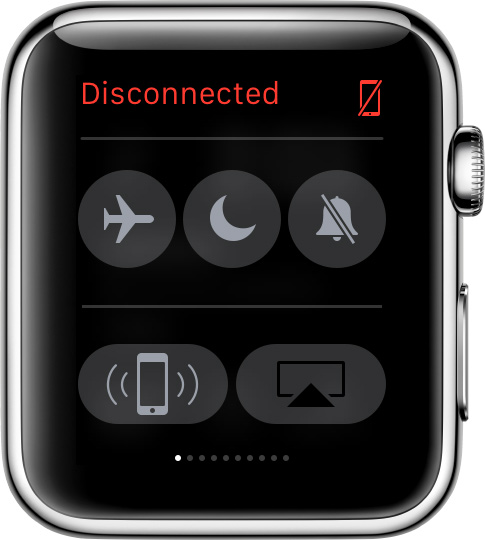
  • If you see a red Disconnected icon   on the watch face, you don't have a connection.

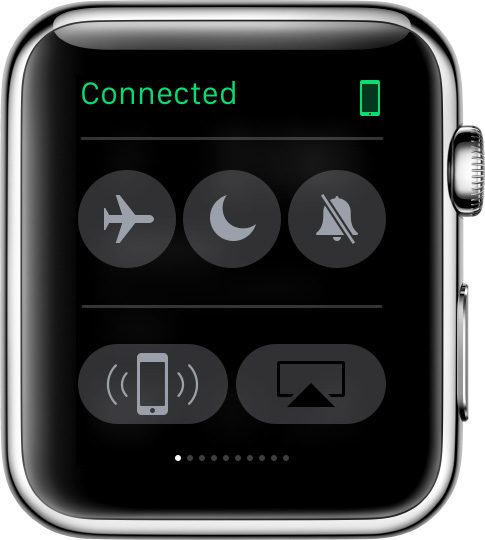
  • Swipe up on the watch face to open Glances. Swipe left or right to find the Settings Glance, which shows if you're connected. You can also tap  . If connected, your iPhone should make a "ping" sound.


You'll see a red Disconnected icon on your Apple Watch display if you aren't connected


A green Connected icon on your Apple Watch display means it's connected to your paired iPhone


If you need help with your connection


  1. Move your Apple Watch and paired iPhone close together, to make sure they're in range.

  2. On your iPhone, swipe up to open Control Center. 

  3. Make sure that Wi-Fi and Bluetooth are turned on.

  4. Restart your Apple Watch and iPhone.

  5. Unpair your devices. Then pair them again.


Apple Watch- How do I change the time on the watch when there's no cell signal?

admin 00:44 Add Comment
We are leaving on a trans-Atlantic cruise shortly and I'm realizing that I have no idea how to change the time on my watch. Every day or two the time will change on the ship so that we're on the right time-zone when we arrive. I will have my phone with me, but will not have it connecting to a cell signal because I'm not interested in being charged the outrageous cell at sea prices. Any thoughts?

Three possibilities:

  1. Go to Settings > Time > "+ 0 mins".  You can turn the digital crown to vary the time by up to 59 minutes.
  2. Use the World Clock to set the time to some city that you know is in the correct time zone.
  3. Have the paired iPhone use the ship's WiFi (not cellular).  That may well supply the correct time.

One more that I want to throw out, is that time comes from the iPhone. You should also be able to set the time manually on the iPhone in Settings > General > Date and Time
There, you can set it by a relevant city, or just adjust to match the time of the ship's clocks

Samsung Gear vs Apple Watch- Watch Your Choice?

admin 10:39 Add Comment
What do you think is the better watch between Apple Watch and Samsung Gear?

According to Apple, Apple Watch is unlike any device they’ve ever made. But they wanted interacting with it to be just as easy and intuitive as using your iPhone or working on a Mac.

"So we invented all-new ways to select, navigate, and input that are ideally suited to a smaller device worn on the wrist. The result is an experience that’s both unique to Apple Watch and quintessentially Apple."


Meanwhile, Samsung Gear 2 allows you to decorate your own customized screen.Choose and change styles and designs of your clock, wallpapers, and font just as you please!

Seamless Communication

Samsung Gear 2 allows you to make and receive calls and read
more on a large sAMOLED display making communication
smooth and seamless.

Tech giant Samsung has given Apple not one but six doses of its own medicine, launching a set of parody advertisements aimed at new iProducts.